
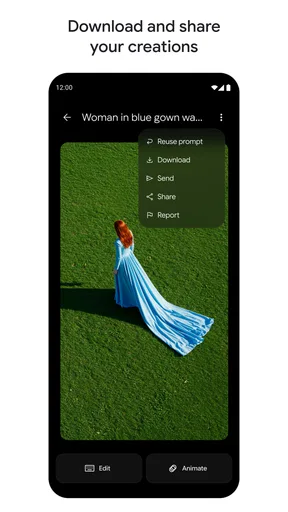
Google Flow review
 Analysis by GetAllApps
I’m most interested in Google Flow as a place to explore creative ideas with AI, rather than as a replacement for a full-featured design program. Its appeal is the chance to move from a rough thought toward a visual direction without first mastering a complicated set of tools. That makes it inviting for quick experiments, although the quality of the experience depends on how clearly you can describe what you want and how much control you expect over the result.
Turning a rough idea into a visual starting point
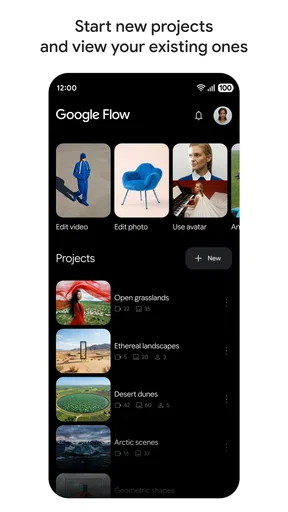
Google Flow is an art and design app from Google Labs, built around the idea of an AI-assisted creative studio. The useful distinction is that I’d approach it as a way to develop and test a concept, not as a promise that every first attempt will be finished artwork. When I have a vague visual idea, the most valuable outcome is often a direction I can react to: a mood, composition, or style that helps me decide what to make next.
That kind of early-stage help can be surprisingly practical. A person planning a poster, a social post, a mood board, or a personal project may know the feeling they want but not how to translate it into a visual brief. Working with an AI creative tool can make that first translation less intimidating. It gives you something concrete to judge instead of leaving you stuck with an empty canvas and a list of ideas in your head.
I’d still keep expectations grounded. Creative work involves choices about detail, balance, audience, and consistency, and a generated starting point does not automatically solve those decisions. The app is most useful when I treat it as a collaborator for exploration: I bring the intention, assess what comes back, and use my judgement to steer the work. It helps most at the moment when an idea needs a visual nudge, not when every design decision must be exact.
Why the AI-first approach feels different
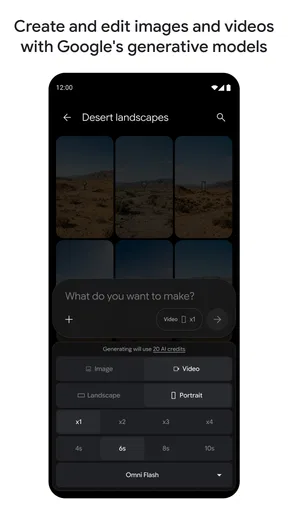
Traditional design apps usually begin with direct control: choose a canvas, select tools, and build the image piece by piece. That is the better approach when I need precise positioning, repeatable edits, or a polished layout with deliberate typography. Google Flow’s central proposition is different. It puts AI-assisted creation at the centre, so the first step can be describing an idea rather than manually constructing every part of it.
This changes the kind of effort involved. It can lower the barrier to trying an unfamiliar visual direction, but it also shifts effort toward describing, evaluating, and refining. A short prompt may be quick to enter, yet a useful result still depends on being specific about the subject, mood, and intended use. If I ask for something broad, I should expect to do more interpretation afterward.
How I would work with it in practice
I’d start with a simple brief that explains what the image is for and what it should communicate. For example, instead of asking only for an appealing visual, I’d identify whether I’m exploring a calm background for a personal project or a bold concept for a poster. That small change gives me a clearer standard for judging the result: does it support the purpose, or is it merely attractive?
My next step would be to change one part of the brief at a time. If I revise the subject, style, mood, and composition all at once, it becomes difficult to tell which instruction improved the direction. Keeping the changes focused is a useful habit with AI creation tools because it turns experimentation into a comparison rather than a series of unrelated guesses. It also helps me notice which parts of my original idea were important and which were just assumptions.
A second practical tip is to save the strongest idea in words before moving on. Even when a visual attempt is not quite right, it may reveal a useful combination of subject and atmosphere. Writing that down gives me a more stable brief for another pass or for a conventional editor. This is especially helpful if I’m exploring several concepts for the same project and want to avoid drifting away from the original purpose.
I would also separate exploration from finishing. If I’m choosing a look for a small personal project, a quick AI-generated direction may be enough to help me decide. If the work needs carefully aligned text, exact brand colours, or precise edits, I’d use a dedicated design tool for those finishing tasks. That handoff is not a failure of the app; it is a sensible way to use a concept generator without expecting it to do every stage of design equally well.
A realistic use: planning a small event poster
Imagine I’m helping a friend prepare a simple poster for a neighbourhood gathering. I have the event details and a general feeling in mind, but I’m unsure whether the design should feel warm and informal or clean and modern. I could use Google Flow to explore the visual mood first, then decide which direction fits the audience. The point would not be to accept an image as the finished poster; it would be to make the creative decision less abstract.
Once I choose a direction, I’d check whether the central subject reads clearly and whether there is enough visual calm for the event information. If the concept is busy or leaves no room for practical details, I would treat that as a useful warning rather than keep pushing the same idea. I could then refine the brief around simplicity or move into a layout-focused editor where text placement is under my direct control.
This workflow shows where the app can save mental effort: it gives me something to evaluate before I commit time to a final layout. It also shows its limit. A poster has to communicate date, place, and purpose clearly, so an attractive visual alone is not enough. I would use AI for the exploratory stage and rely on deliberate layout work for the parts where accuracy and readability matter.
Where the experience asks for patience
The main tradeoff in an AI-centred creative app is that generation and control are not the same thing. I may have a precise picture in my mind, but communicating it as instructions can take several attempts. The result can also lead me somewhere unexpected. That surprise is useful when I want inspiration; it is frustrating when I need a tightly controlled outcome or am working to a strict visual specification.
There is also a judgement burden. An output can look finished at a glance while still being a poor fit for its intended context. I would inspect whether the image supports the message, whether the style suits the audience, and whether I can realistically adapt it for the final format. That extra review matters more for public-facing design than for a private experiment.
People comparing it with familiar drawing and design apps should think about the task, not just the category. A hands-on illustration app is a better choice when I want to draw each mark myself. A layout editor is better when I need reliable control over text, spacing, or a set of reusable design elements. Google Flow makes more sense when I want AI to help me explore a visual idea before I decide how to build it properly.
Who is likely to get the most from it
I’d recommend giving it a try if you often have visual ideas but find the blank page discouraging, or if you enjoy comparing creative directions before settling on one. It may also suit people who want a low-pressure way to experiment with concepts for personal projects. Because it is free, trying it does not require an upfront purchase, though the best reason to keep using it is whether its AI-led approach actually fits your process.
It is less suitable for someone who mainly wants a traditional drawing surface or exact, repeatable control over every element. A professional workflow with strict specifications may also be better served by dedicated tools for illustration, editing, or page layout. I would not choose an AI studio simply because it sounds faster; I would choose it when generating possibilities is a meaningful part of the work.
Google Flow is rated for Teen audiences and has an average rating of 3.8 from around 35,000 ratings, alongside roughly 676 written reviews. It has passed 10 million installs, which suggests that many people have tried it, but popularity alone does not tell me whether it suits a particular creative routine. I’d pay more attention to whether its style of interaction feels productive to me: can I describe ideas clearly, and do I enjoy judging and refining what the AI produces?
The app was released on May 18, 2026, and its current version is 1.591.0. It requires Android 7.0 or later. Those details make it worth checking device compatibility before installing, especially if you use an older Android phone. Google Labs is the developer, and the app’s creative focus is clear; what matters in everyday use is whether you want a prompt-led starting point or prefer to create directly with conventional tools.
My recommendation after weighing the workflow
I see Google Flow as a useful idea generator for people who want help getting from an intention to a visual direction. Its strongest role is not replacing artistic judgement, but giving that judgement something to work on. A focused brief, small revisions, and a clear distinction between exploration and final production can make the experience more rewarding and prevent a promising concept from being mistaken for a finished design.
If I were recommending it to a friend, I’d say to try it when you’re curious about an idea and unsure how it should look. Use it to explore, compare, and find a direction, then switch to a more precise tool if the project calls for exact editing. If you want to draw by hand or need dependable layout control from the outset, you may be happier elsewhere. For visual brainstorming, though, Google Flow offers a approachable way to turn an unfinished thought into something you can assess and develop.
Pros and cons
Pros
- Create polished videos from text prompts and reference images
- Generate synchronized audio alongside video scenes
- Use camera controls to guide motion and framing
- Build longer stories by connecting generated clips
- Experiment with multiple creative models in one workspace
Cons
- Availability may be limited by region or account eligibility
- Generation can use credits or paid plan allowances
- Results may vary from the prompt or reference image
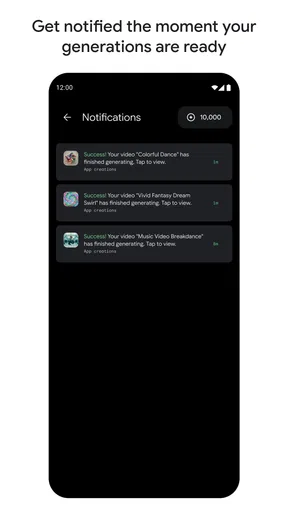
- Video generation can take time during busy periods
- Generated clips may need editing for consistent storytelling


